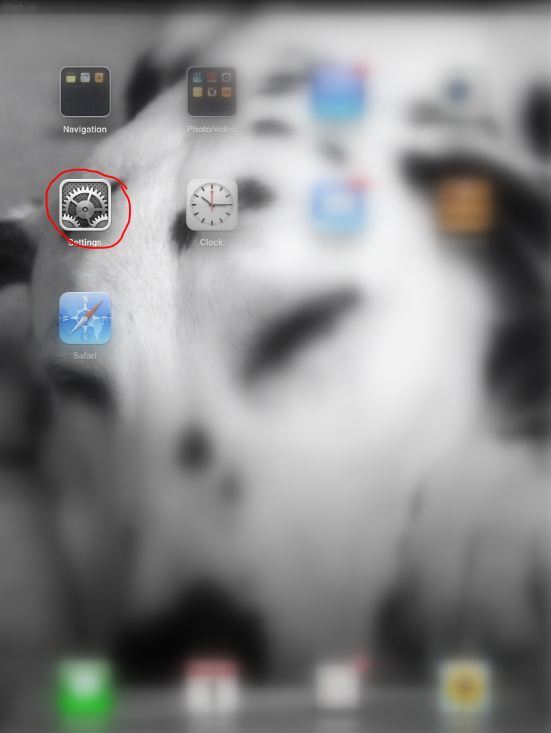
First, you will need to enable it in the "Settings". Go to "Settings"-->"General" You'll need to swipe up (on the right side) to get to the bottom of the list--which is where "Accessibility" is located.
Open 'settings'
Go to 'general'
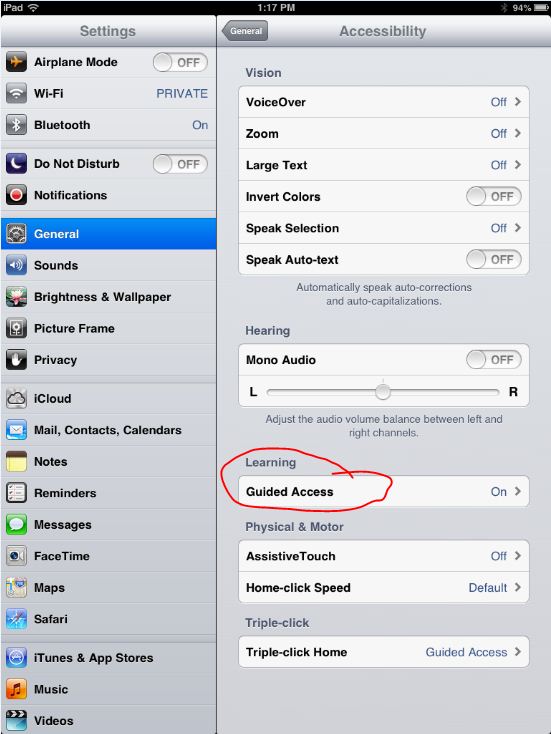
Swipe up to get to the bottom of the general settings & select 'accessibility'
Once in the Accessibility menu, you should see 'guided access' listed under Learning. It will be "off" by default (mine is "on" in the screenshot because I'd already set it up :) ). Touch it to open the menu and turn the feature "on".
It will also open the Guided Access options...
Guided access options
If you really want to make sure the kids can't get out of the app, set the passcode...just make sure you remember the 4-digit code you enter, or you won't be able to get out of the app either!
Now that you've set up the feature, you can activate it from any app. To activate it, open the app and triple-click (press 3 times, quickly) the "home" button.
Press the "Home" button (circled in red) 3 times in a row, quickly
That will open some options...
Guided access options, once activated in an app
When you have selected all the options you want, touch "Start". You will not be able to exit the app unless you de-activate it by triple-clicking the "home" button again and entering the passcode.
Well, we are nearing the close of our first week of classes here in our new Multimedia Center. Overall, I think it's gone pretty well.
For those of you who were not able to make it (or if you're a B-week class), we did pretty much what I said we would do in the last post...we introduced ourselves using the SMART Board,
Introductions & greetings with the SMART Board
we introduced the kids to the Read To Me Center, and demonstrated what to do if if that's the center you choose.
Practicing with the AnyBook reader (aka "special pen")
We also shared our "kid report" page that we'll give to each student (or to the teachers...not sure just yet of those details) at the end of each visit...so they will have something to 1-take home to tell their family about coming to the multimedia center, and 2-they can share how they felt about it.
**Note to teachers: If I forgot to give you these when you came with your class, I apologize...if you click on the link (above) you can print them.**
"I went to the Multimedia Center today!" - kid report
Overall, I would say that we had a pretty good first week! We're looking forward to next week! I did want to also share some info about our SMART Table. For those who have not heard, it is dying. Apparently, it was probably in the early stages of dying for awhile...but it was hanging on...until I tried to "orient" it, and then it became aware of its illness and stopped working. I spent a good chunk of time yesterday afternoon on the phone with the Level II technician from SMART (that's who you talk to when your problem is too big for the Level I folks) trying to "revive" our board so we could at least use it while we wait for the replacement table top. It was quite a process...as anyone who was in the library during this time can tell you. I had my phone stretched across my office, the SMART table wedged in my doorway, keyboards and mice hanging all over the place, and at one point, all the lights in the library off. The situation is this...it's "sorta" functional, but just barely. So we're going to be without the SMART table until we get the new table top. Unfortunately, there is a backlog of orders for these (we're not the only ones having this trouble)...so it may be a month or two before we are up and running with the SMART table center.
We're
getting all prepared for our Grand Opening on Monday! For the first few
weeks, it'll be a little different as we try to introduce the kids to
everything...especially the *new* stuff (since that's new to the
teachers and paraprofessionals, too!). We're going to start with an intro to each center...with an opportunity for the kids to practice.
So here's what to expect in the first week:
We will be introducing ourselves (me & Miss Helen) to the students.
We will introduce the students to our "center management" plan (i.e. how they will choose centers)
We will introduce students to the Read To Me Center.
So you know...or can go back and see if you forget, here is a quick little video clip of how the Read To Me Center will work:
You
may recognize these pictures from an earlier post...but I wanted to
include them again since they relate to the Read To Me Center.
First, for the green dotted books (which will use the iPod touches):
Screenshot of iPod touch (from Read To Me Center) showing the "Music" icon to touch to open the books
Screenshot of what you *should* see once you touch the "Music" icon.
And for the red/blue dotted books, the students will use the Franklin AnyBook Readers...
Blue AnyBook reader (with corresponding blue-dotted book)
Also, here is a shot of the Launch Pad - this is the spot where the students will be able to see which centers are open and available, take their "check-in" stick (and where they will return their sticks when finished with a center) and...
Launch pad
..."check-in" at the center...
"Check-in" center sign
Okay...well, I'm going to get prepared to get out of here for the day (since Fridays are not one of my work days). Have a great weekend and I'll see you all on Monday morning for our first day of classes!
Well, I'm home with a sick kid today...but that is not keeping me from working on this AAC stuff. I'm going through the activities and continuing to work on creating AAC boards (right now, in the GoTalk Now app for the iPad). While doing this, I figured out another cool feature of this app! So here's the normal stuff... One of the activities on the SMART board for Theme 4 is a Winter-Summer sorting game.
Winter-Summer sorting game SMART board activity for Theme 4
And here is the corresponding communication page for the iPad (GoTalk Now)...
Corresponding AAC board on iPad (GoTalk Now app)
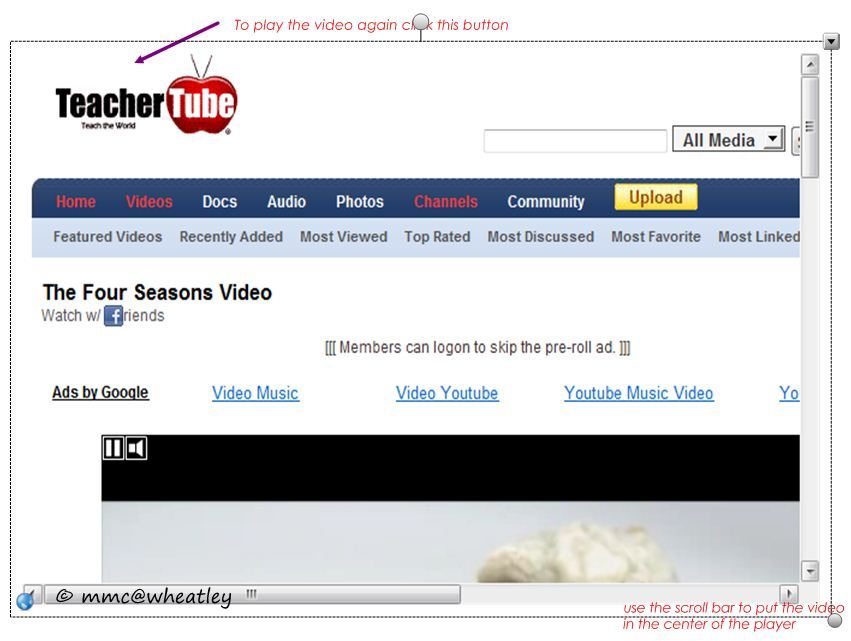
Another one of the activities that Didi created for this theme has an embedded link to a TeacherTube video about Seasons.
Embedded video activity in SMART Board activity for Theme 4
In the GoTalk Now app, I was able to create a button that will allow the user to watch the same video on the iPad just by touching the button (or we can use it with a switch and do the same thing).
Page in Theme 4 Board (GoTalk Now app)
Neat, huh? But wait...there's more!
I also created a page of buttons that, when selected will play movements from Vivaldi's Four Seasons!
Music page (each button is linked to the corresponding movement of Vivaldi's Four Seasons)
Love, love, love this app!!
So I think that's all I'm going to have time for today since I have to go pick up the non-sick child from school.
Now continues the rather lengthy task of creating all of the communication supports and adding switch access and other accessibility functions into the activities we've already created.
So, for Theme 1, here's an example of the communication support that we have so far...
I have created some communication boards to go with some of the Theme 1 activities using the GoTalk Now app on the iPad.
The first page is a choice (depending on the center selected, different boards will be available):
To give an example, here's what the SMART Board activity for Theme 1 looks like:
This first board has all the items from the activity in a grid form. Using this board, a student with mobility difficulties could "tell" the teacher (or another student) which item to drag to the school.
The first board for this activity
The second board is a yes/no board. This could be used in a similar way...but with the adult (or other student) asking "Does this one belong in the school?"
yes/no board
And the last board for this activity is a scene display (this was the one that had me all excited on Monday). You'll notice that the board looks just like the activity. The idea is basically the same as the first one...but instead of touching a picture in a grid, the student is touching a picture that looks identical to the one on the SMART board.
Scene display board
It is not perfect...but it provides a means of participation in this particular activity which would not necessarily have been possible for some students. It also encourages communication and helps to model the use of an AAC device for communication.
I'll continue working on adaptations...but making the final adjustments so we'll be ready to open on 9/24.
Today I am working with Didi and Helen--we are looking at the activities that Didi has created for the SMART board (and SMART table); and I am trying to create some supports for communication (using the GoTalkNow app on the iPad) to go along with the activities. I will also be looking at ways I can make the activities themselves more accessible...but this is where I am starting.
So, for example, in Theme 1 (Welcome to School), Didi has created an activity for the SMART board that looks like this...
School Items Activity for SMART Board Center - Theme 1
This activity involves "dragging & dropping"...which may be more difficult for some of our students with physical /multiple disabilities...SO, I have created several GoTalk Now boards to go along with this activity. If a student is not able to physically access the activity, he/she can still tell someone which item to move and/or answer yes/no questions related to these items.
"Items" page (touch the item and it'll speak)
"Yes/No" page for responding to question: "Can you find this in school?"
While working on this, I discovered a new feature of the GoTalk Now app (which must have come with one of the more recent updates) that is VERY exciting (to me, anyway)!
The cool *new* feature I just discovered: Scene Display This is what the SMART board will look like & if you touch one of the items, it will speak the name
The sign up sheet (for classes) is in the library--please come and sign up. We're going to be following Music's model--doing A/B week for the half-day classes; full-day classes will come every week.
Our original plan was to be open for business next week, but it looks like it will be more likely to happen the following week (17 - 21 Sept). We would like to have the teachers & paraprofessionals come through an "orientation" before coming with the students since it is a little different from last year.
The center/"check-in" signs are ready. Other than the SMART Board Center (which is mounted on the wood post near the SMART board), the center/"check in" signs will be placed on the floor near the center itself.
SMART Board Center/"check-in"
SMART Table Center/"check-in"
iListen & iLearn Center with "check-in"
Read to Me Center
At our TACT team meeting this morning, team members got a "first-look" at the *new* Multimedia Center. Next week, I hope to have the rest of the staff in for an orientation!





.jpg)
.jpg)
.jpg)
.jpg)


.jpg)




.jpg)
.jpg)
.jpg)
.jpg)


.jpg)